



(Forward: This blog article began as what I felt would be a straight-forward documentation of an obscure sector of the old Packard Bell computing world. It cycled into a lot more and became a massively rambling mess spanning months of time, especially the latter half involving the master CD chaos. I used this blog in part for real-time notetaking while I worked on the system.)
TL;DR: You really don't need to use the PBTV5 tuner card to still get composite video input on the Platinum TV-capture capable machines from 1996-1998. Using the card for coaxial input requires a custom cable and it can be easy to short the wrong pins out if you aren't careful. With the loss of analog broadcasting it is rare to need that coaxial input at all, proceed at your own risk. Also Packard Bell master CDs, not a fan of them.
Many years ago, I wrote an in-depth blog about my Packard Bell Platinum Pro 750/755 and the challenges of bringing it back to life and restoring it to a fairly original state. One section of my post briefly explored the on-board video capture functionality that was a heavily promoted feature in the Platinum Pro line of systems from the mid-1990s. While PBTV3 and PBTV4 capture cards were more standardized and adaptable with common drivers and hardware, sets from around 1996-1997 instead shipped with PBTV5. This change incorporated a very limited and proprietary tuner card, with much of the driving force behind it coming from the motherboard itself.
I recently revisited this topic with a variety of part machines and half-working Packard Bell systems and will detail my findings here since it was quite an effort to unravel everything correctly. Alongside this, another nagging issue was how so many restores of this line of systems with the Master CDs resulted in no programs populating the start menu or desktop. Something that seems to happen randomly whether on a real machine or emulation, and not always.
Primary Challenge: Determine the proprietary pinouts from the 6-pin mini-din tuner card to the 7-pin mini-din motherboard port and overall functionality of the capture tech in these Packard Bell machines.
Secondary Challenge: Detail the entire restoration process from the Master CD to determine at what point the install is failing to populate the start menu and desktop.
RIP Packard Bell FTP Server
I am reminded of the completely nonsensical claim of "anything on the internet is forever" whenever I look back at old bookmarks or online resources from 5, 10, 20 years ago and how few of them remain at all. One such casualty was the original and complete FTP presence of Packard Bell. This was an amazing collection of all the drivers, BIOS updates, manuals and exclusive software programs for the many models of Packard Bell from the earliest onward. Since the names of the files were cryptic and often just a string of numbers, the searchable database to filter by model and driver type was a crucial part of the resource.
Many of the original Packard Bell fan websites hot-linked to files from Packard Bell's FTP, so even if those mostly long defunct websites are still accessible through an archived version, the file links themselves aren't. This is a common trend when searching a lot of content online. You will often find people uploading one-off files to random file sharing sites with a retention of only 7-90 days. Although not easily discoverable including through "The FTP Site Boneyard", there does exist a 53.2GB FTP backup of the Packard Bell FTP. Combining this resource with some old Packard Bell archive links to determine filenames can be a good first step to find particular software or driver packages.
Months into my search efforts to find additional Master CDs and other Packard Bell media, I stumbled upon a small Facebook group: Retro Computer and Packard Bell Planet. Accessing the content requires manual admin approval to join. After that, you will be able to locate FTP credentials to a private file store that still houses a wealth of data including copies of the Packard Bell FTP and many master CDs that still do not exist on Internet Archive. But even finding the FTP details was a challenge since they were shared in a single document to the group many years back when Facebook offered a "Notes" component, which is not even accessible anymore except on a legacy URL via desktop. Since these resources don't have the nice front-end searchable database that Packard Bell's original website did, it can still be tedious to locate specific items but is nonetheless an amazing resource for Packard Bell fans. The FTP also houses master restore CDs for a lot of other common computer manufacturers of the 1990s beyond Packard Bell.
(A second amazingly useful FTP resource that eventually vanished was Intel's. Like Packard Bell, Intel housed thousands of manuals, datasheets and schematics, drivers and software packages for even their most legacy products on the FTP, until they shut it down. Thankfully there appears to be a complete 70GB mirror of it on Internet Archive from January 2014.)
Packard Bell Platinum 750 Video Stack
To begin the more thorough probe into the PBTV5 tuner system, it is worth first review the actual stack of video-related tech within these Packard Bell systems. This may vary somewhat by model, but on my 750 and 755 models the hardware includes:
- S3 ViRGE On Board H1E3BB Integrated 3D Accelerator (86C325 9623 BA4189.1): This is the GPU powerhouse built into the motherboards of these mid-1990s multimedia machines. The technology was some of the earliest to deliver smooth 3D-graphics rendering, even if it is not favorably looked back on in many modern retrospectives. 2MB of dedicated EDO video RAM was fed into it from four distinct chips (MT4C16270DJ-5) on the board. Obviously adding a dedicated GPU still outperformed this in every way, but for onboard video this felt like a decent breakthrough at the time and allowed games from the era to play well with foundational hardware acceleration. (Datasheet Here)
- Brooktree Bt829KPF Video Decoder (039 9622): This is where these PBTV5-variant machines differ from traditional multimedia machines. Brooktree was a major supplier of video decoding ICs back in the day, and there are many families of its ICs floating around in old hardware. The Bt829 is this series' video decoder chipset that handles composite/coaxial video signal, decodes it and feeds into capture software is tightly integrated into the motherboard instead of the tuner card. It is a sophisticated 100-pin chip that includes I2C communication properties through SDA (pin 18) and SCL (pin 19). That feature comes into heavy play within this reduced-cost/streamlined Packard Bell architecture. (Datasheet Here)
- PMT-NSP02A ISA Tuner Card (60844537) with Philips 3139 (147 13251P) Tuner: The third wheel of this trio that makes coaxial/antenna video capture and decoding a reality. Unlike prior incarnations and most capture cards on the market at the time, this card is one of the most stripped-down peripherals imaginable. It essentially functions purely for the tuning aspect and to pass coaxial signal back down to the motherboard and to the sound card. While no datasheet exists for the card itself, I was able to eventually locate a matching tuner datasheet that helped solve some important pieces of the puzzle. (Datasheet Here)
Motherboard 7-Pin Mini-Din Connector: I2C and S-Video In
When these machines were brand new, they included a special connector cable from the tuner to the motherboard. Try as I have, I've been unable to locate a single one of those cables anywhere. So my main task was to demystify the functional purpose of the connector between the tuner card and the motherboard, to eventually construct my own replacement cable. In part because even attempting to launch the capture software would often throw errors or fail to load at all, and I suspected part of this was due to the lack of a cable between the tuner and board (TL;DR: Actually the RCA composite input works fine without the ISA tuner card or cable at all, with proper drivers). In my early exploration of this years back, I managed rudimentary grayscale only video to the tuner but the method was pure guesswork. I also spent several days attempting similar again using a makeshift end of a PS/2 and S-Video connector, a bunch of jumper cables and a breadboard. It wasn't ideal.
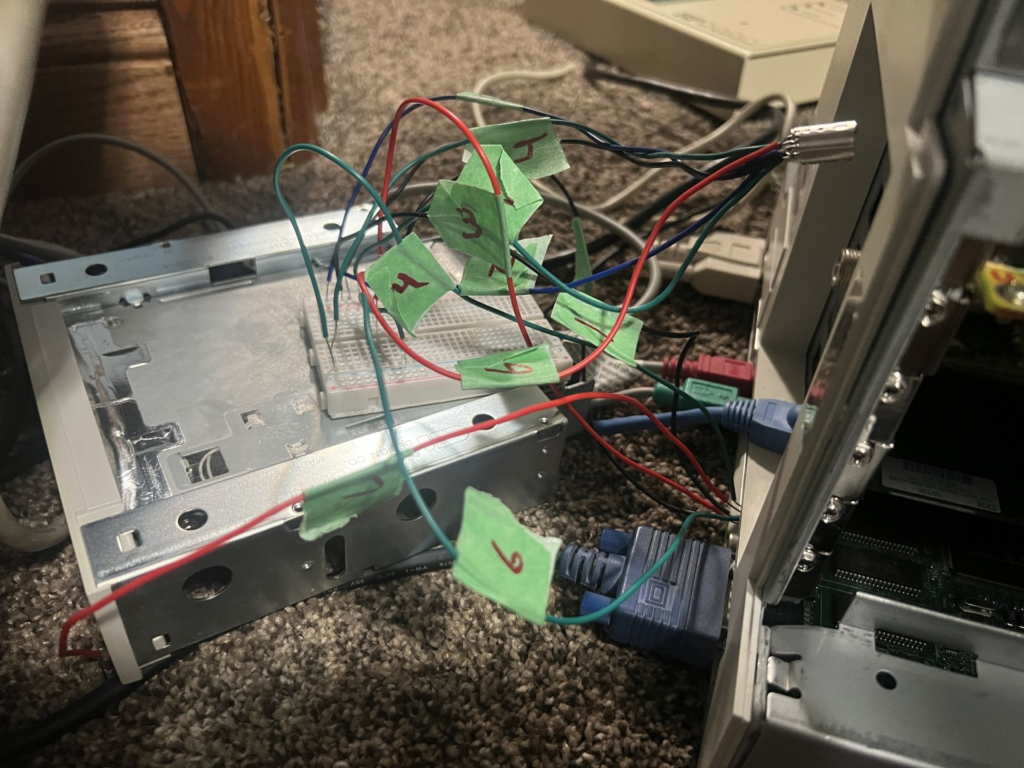
For much of this project, I did not have a removed motherboard to better trace the pins to ICs and circuitry. So using basic wire connectors and a multimeter I set out to at least trace some of the basics. In the process I grew frustrated that I couldn't simply find a manual for the motherboard that would lay it out cleanly.
The Motherboard: PB 655546-004 (IPOR62800985 181410 E139761 AA 660910-401)
The PB-655546 equates to the M680 model motherboard. A good first lead. Searching around and it was easy enough to come across old Packard Bell sites and materials that, as alluded to earlier, often linked to the Packard Bell FTP for resources. All defunct. I came across a helpful motherboard overview on UKT including the specs and jumper details at a high level. It described the 7-pin port simply as "S-Video I2C and S-video IN."
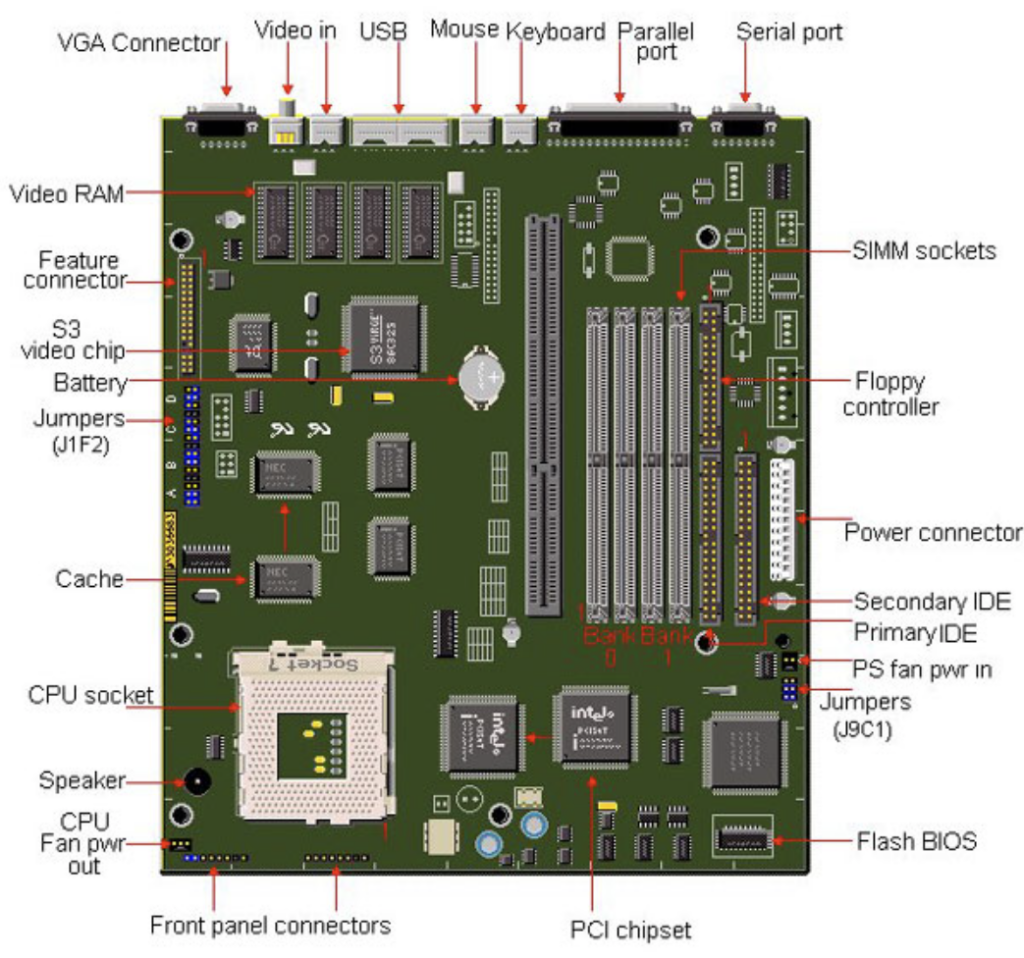
A much greater lead came from an old archived Packard Bell website. The author gives one very important detail, how the 680 was essentially a rebranded Intel Orlando NV430VX motherboard. Intel's own website does not readily offer the manual anymore since their FTP went under, but I was able to locate a copy elsewhere. And right there in plain writing and illustration was finally the general description of that 7-pin port.
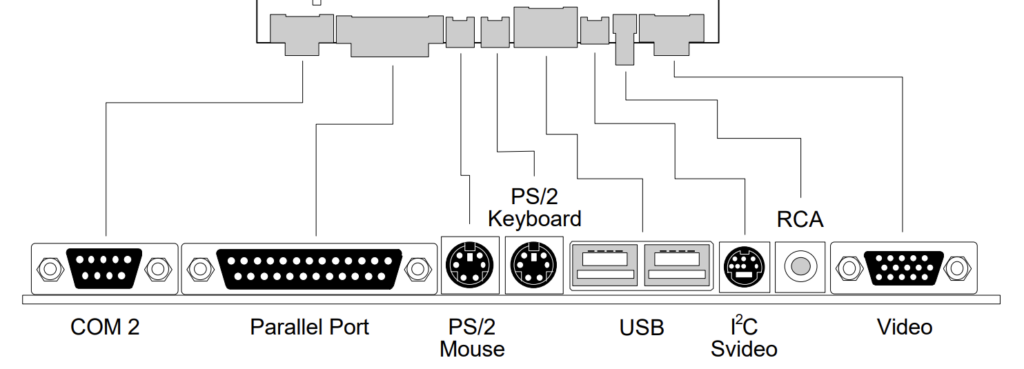
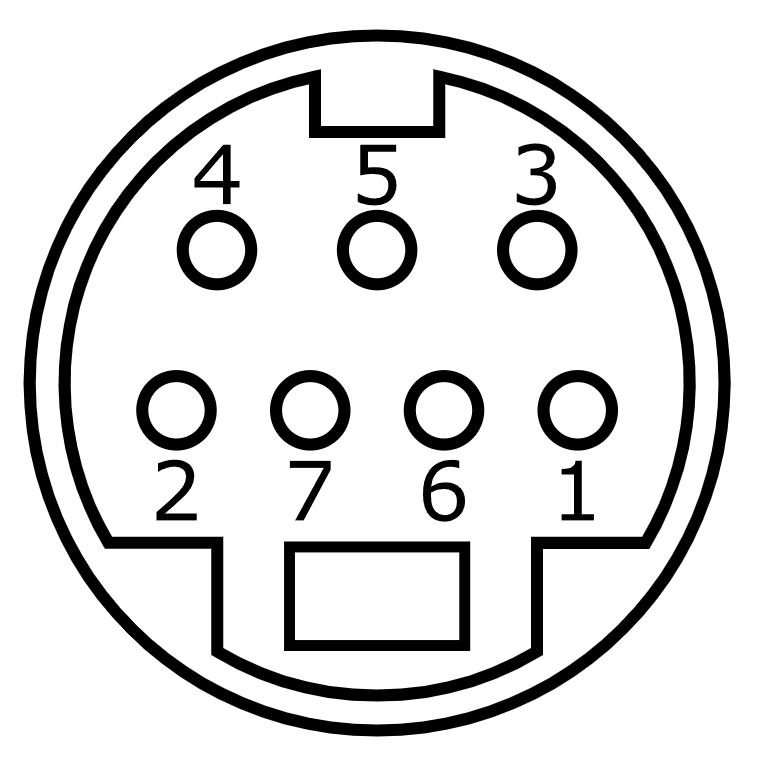
I2C/S Video Out Connector Pinout
- PIN 1: Ground
- PIN 2: Ground
- PIN 3: YIN
- PIN 4: CIN
- PIN 5: IICCLK
- PIN 6: +12V
- PIN 7: IICDAT
The motherboard manual also includes this helpful blurb about the Brooktree Video Capture IC:
Brooktree Video Capture
The NV430VX features an optional Brooktree Bt829 Video Capture Processor for TV/VCR applications. The Bt829 is a single-chip decoding and scaling solution for analog NTSC/PAL/SECAM input signals from TV tuners, VCR’s, cameras, and other sources of composite or Y/C video. The NV430VX provides two inputs for video: an RCA input connector, and an S-Video input connector as part of a 7-pin mini-din connector on the motherboard I/O backpanel. The Bt829 registers are accessed via a two-wire Inter-Integrated Circuit (I2C) interface provided on a 7-pin mini-din on the motherboard I/O backpanel.
Interpreting the pinout, we see that pin 5 (IICCLK a.k.a. I2C Clock) and pin 7 (IICDAT a.k.a. I2C Data) relate to communication via Serial Clock (SCL) and Serial Data (SDA) of the Bt829 decoder. Pin 3 (YIN) and PIN 4 (CIN) are reference to the intensity/luminance and color/chrominance signals of s-video. There's a +12V power rail and a couple of grounds. The actual pinout numbering of the female port aligns with existing depictions for 7-pin s-video cables. 4 5 3 - 2 7 6 1. The port is designed to accommodate a more ordinary 4-pin s-video cable where pins 1, 2, 3 and 4 all match the signal use here. But the missing pins are necessary for proper communication between the motherboard and tuner, well at least pins 5 and 7!
It is important to emphasize this was the pinout and functionality from the motherboard's perspective to and from the port to the Bt829. But they left it up to third party manufacturers to interface with it as necessary for a variety of capture inputs, outputs and conferencing products. Which as we'll discover, means some use cases did not need to use all pins.
Tuner 6-Pin Mini-Din Connector
With the motherboard port and mechanisms somewhat unraveled, my attention turned back to the tuner itself. This connector is a standard 6-pin mini-din PS/2 style but figuring out the pins led to a lot of intriguing discoveries.
The first observation is that this 8-bit ISA card uses the ISA slot purely as a power source. It has only six fingers on the slot (solder-side) corresponding to B1 (GND), B3 (+5V), B9 (+12V), B29 (+5V) and B31 (GND). So there is no data communication happening between it and the board beyond this magical cable.
A second observation is just how desolate the card PCB is. There are many unpopulated footprints for other components including another 32-pin IC and two 14-pin ICs, and many blank spots for what would-be additional capacitors and resistors. It is clear this PCB at least was highly stripped down from what it could be, specifically to rely on the onboard S3 and Bt829 to do the actual heavy lifting. All transmission and communications must be done through the special cable.
The actual components are very simple, beyond the typical caps and resistors we have:
- 7805 Voltage Regulator (+12V in, +5V out)
- TEA5582 Stereo Decoder
- 3-Pin Stereo Lead-out to Soundcard
- TL PCF8574T 8-Bit I/O Expander for I2C Bus
- Philips 3139 147 13251P Tuner
- TDA9800T Demodulator (IF processing from tuner)
6-Pin Connector Pinout

With the card removed it became pretty easy to trace the pins, though still left a few lingering questions. I first mapped up the general layout of the pins and numbers in Excel. This included several different access points both from the port as well as the solder-side and component-side of the board as the PCB included a breakout row that tied into the pins.
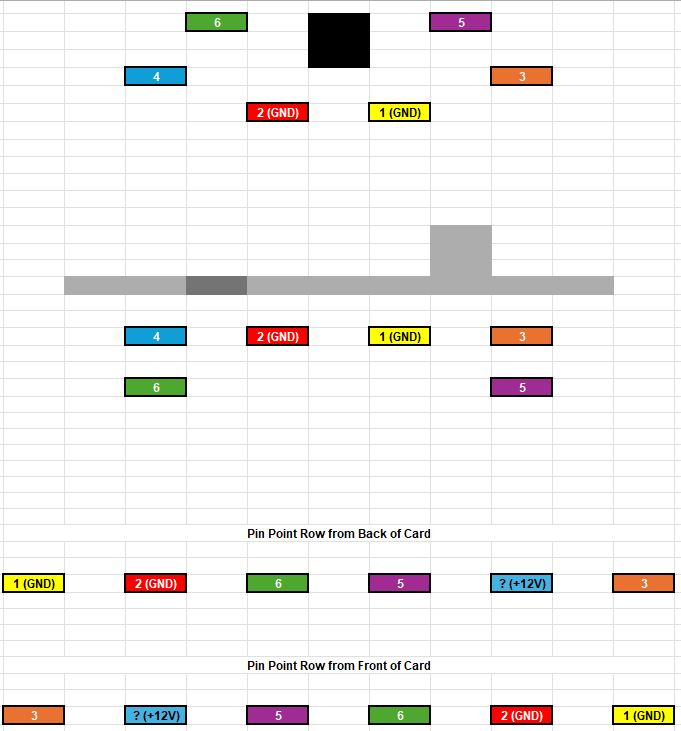
- PIN 1: Ground
- PIN 2: Ground
- PIN 3: R11 to PCF8574 I2C Pin 15 (SDA)
- PIN 4: No Connection
- PIN 5: C35 (Shunt), R14 to PCF8574 Pin 14 (SCL), R47 to Tuner Pin 13 (I2C-Bus Serial Clock)
- PIN 6: Tuner Pin 23 (CVBS) - Composite Video Out
Philips Tuner Terminal Pinout
While my initial tracing of pins gave me full confidence about pins 1-5 as relating to grounds and SDA/SCL communication that corresponded to the 7-pin and, in turn, Bt829, the actual connections to the internal tuner were still not certain before I could locate a schematic. The tuner can has 10 thick leads going into the PCB but their actual ties were underneath the PCB and not easily determined.
After combing through more than a few Philips tuner datasheets that, despite having very similar identification codes, were vastly different than this one... I finally found the exact match. (Datasheet Here).
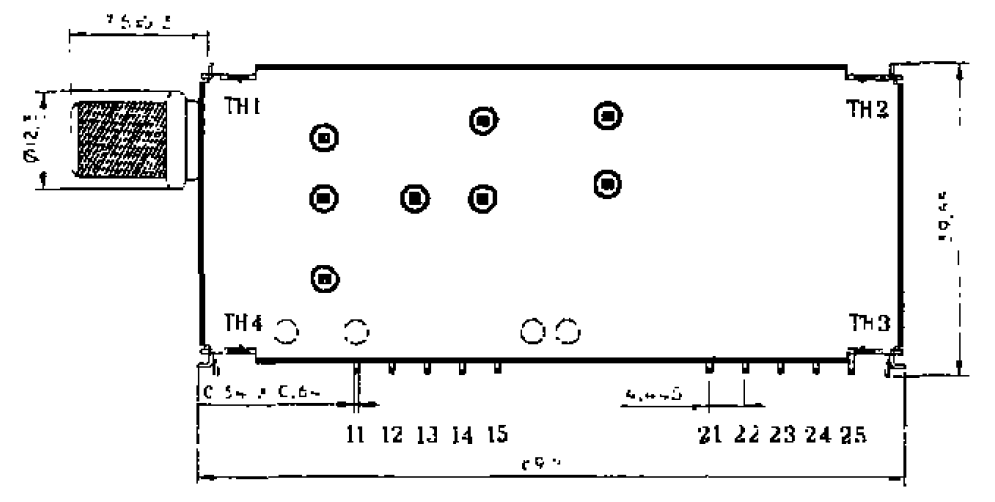
With the noted pin numbering above, the pins of the tuner map to:
- PIN 11: VT (Tuning Voltage - Monitor)
- PIN 12: VS (Supply Voltage Tuner Section +5V)
- PIN 13: SCL (I2C-Bus Serial Clock)
- PIN 14: SDA (I2C-Bus Serial Data)
- PIN 15: AS (I2C-Bus Address Select)
- PIN 21: No Connection
- PIN 22: 2nd IF O/P (Second IF Sound Output)
- PIN 23: CVBS (Composite Video Baseband Signal Output)
- PIN 24: VF (Supply Voltage IF Section +5V)
- PIN 25: AF O/P (AF Sound Output)
Putting It All Together (The Final Pinout)
In what became many weeks of obsession, I was happy to finally have a complete pinout of these components and greater understanding for how they worked together. With that in mind, here is the definitive pinout to remake this completely lost and forgotten Packard Bell media connector cable.
- TUNER PIN 1 → MOTHERBOARD PIN 1 (GND)
- TUNER PIN 2 → MOTHERBOARD PIN 2 (GND)
- TUNER PIN 3 → MOTHERBOARD PIN 7 (SDA - IICDAT)
- TUNER PIN 4 → No Connection
- TUNER PIN 5 → MOTHERBOARD PIN 5 (SCL - IICCLK)
- TUNER PIN 6 → MOTHERBOARD PIN 3 (YIN - Composite Video In)
Note that MOTHERBOARD PIN 6 (+12V) is not connected at all to the 6-pin. The ISA tuner card receives its needed +5V and +12V from the ISA slot itself and regulates it on-board. In my early experimenting with this and troubleshooting why the capture component would rarely work if at all, I believe a 12V line had been fed to the wrong pin leading to the IC decoder and when I touched that chip it was red-hot and clearly shorted out. Lesson-learned to always take it slow and know the pins fully before going by suspicion alone at what connects where.
Realistically the tuner card and cable to feed coaxial to the mainboard has been made essentially useless since analog over-the-air broadcasting is long gone. You can feed a digital converter box through the composite in of the motherboard for a direct signal without needing to deal with the capture card at all, so this entire makeup of the capture stack would only be useful if you want to still capture something via RF/coaxial with audio signal. Do note that the RCA composite in on the motherboard is video only, so if feeding in a source with audio you'll have to wire it into the sound card input.
Connector Hardware
The 6-pin side of the cable can be made out of any ordinary PS/2 keyboard cable. If you happen to have a dead and non-working old keyboard you can cut the cord, strip the plastic and then run continuity tests to verify all pinouts. Or find a PS/2 keyboard extension cable or even just a PS/2 connector prewired and ready to solder.
The 7-pin "S-Video" side is less straight-forward. It is the non-standard arrangement where the pins are arranged in two rows above the plastic key, whereas most such cables out there have the key in the center and pins circled around it. One person documented the pin measurements to make his own with a CNC router. He used a more common style 7-pin to "harvest the pins" and then with carefully drilled holes in an ordinary 4-pin S-Video cable was able to add the extras. I imagine a 3D printed connector would also suffice these days.
In a pinch, you can use any common breadboard jumper wires. Solder these to each of the wires from the mini-din 6 wiring and then the male connector can be pushed into the necessary pin hole of the motherboard's 7-pin. Just be very careful that you triple check the pinout and placement and that none of the leads into the s-video port are ever touching.
Another cheap option is to order one of the "3 RCA to 7 Pin Mini DIN S-Video Extension Cable" sets on Amazon. This has the exact match for the Packard Bell port but will need to be completely rewired. You can carefully cut the sheathing and connector end with a razor blade and pull it off with a pliers. Then desolder the existing wires and straighten out the pin points. From there you can solder the correct wires to the necessary pins and seal each and the overall connector with some nice shrink-wrap.
Audio Interfacing (ISA Aztech Sound)
The tuner card passes stereo audio through a three pin connector that feeds into a combo modem-soundcard-joystick that shipped with these systems. This card has a huge number of components and optional connectors on it. This includes 3-4 pin connectors for:
- CD Audio (1)
- CD Audio (2)
- Ring
- L-Out 1
- Radio
- TV Audio
The TV tuner card has a 3-pin cable that runs audio-out to the TV Audio input of this card. Since this card tries to be a jack of all trades, drivers can be really particular and disruptive as it ends up being multiple entries in the device manager and IRQs. More on this later.
The Case of the Missing Start Menu and Mismatched Restore CDs
In a problem that feels so obscure that I can find no other reference to it online, I have found that the majority of system restores I perform on these Packard Bell 750/755 machines results in a complete lack of desktop icons or start menu programs. It is not normal, and leaves you with a mostly broken Windows install where nothing is accessible beyond manually browsing directories. As part of this, it also wipes out Packard Bell Navigator (C:\Nav) and any other customizations beyond the Packard Bell wallpaper. I have had this happen on both a Packard Bell 750 and 755, as well as an 86Em and Virtual Box emulation effort. Using OEM CDs and my own patched versions.
The complexity is that Packard Bell bundled a metric-ton of proprietary scripts, timed restart sequences and custom programs as part of handling these system restore processes. It also processes the install scripts on the premise of factory, OEM reset and user parameters. Any slight deviation in hardware from the original, or even subtle installation delays and so on, could lead to some failure along the way. I detail some of this in my original blog article. But as I work to resolve this problem reliably, I will document the overall flow of the Packard Bell recovery process in even more depth now.
Master Restore Disk 3.5W
The master recovery CDs of this era machine were not boot-capable, and BIOS rarely supported this either. Instead, you would boot from a typical 3.5" floppy system disk that contained the core DOS files and an autoexec to launch into the Packard Bell recovery menu. I created my own patched version of this floppy along with a patched CD and uploaded it to Internet Archive. This circumvents some crude CD model checks and other hardware fingerprinting.
The factory default autoexec.bat that runs from the floppy is overly-complicated with many lines dedicated to loading particular CD drivers. Ultimately it launches the recovery menu via C:\DOSMENU\DOSRUN.EXE. Much of the setup requires the CD volume label be Q: instead of the common D:. My patched version is much more consolidated and initializes the mouse, sound and CD using the universal OAKCDROM.SYS driver:
AUTOEXEC.BAT (Floppy Version)
@ECHO OFF
VER
PATH A:\
ECHO Master Restore Diskette Version 3.5W
ECHO Simplified by Matt Pilz (2022)
ECHO Packard Bell Blog: MattPilz.com
ECHO.
SET MOUSE=Z:\
LH A:\MOUSE.COM >NUL
SET MOUSE=

SET CD=CR_IDE
A:\DEVICE.COM A:\OAKCDROM.SYS /D:MSCD0001

LH A:\MSCDEX.EXE /D:MSCD0001 /M:30 /L:Q
LH A:\SMARTDRV.EXE 2048 2048 /Q
LH A:\DOSKEY.COM >NUL
SET CDDRV=Q
SET TOOLS=PB
SET OEM=Packard Bell
PATH A:\;Q:\BU\D\WIN95.DAT\WINDOWS\COMMAND
Q:
\AZTPNP.EXE /D:Q >NUL
CD DOSMENU
DOSRUN.EXE
As a prerequisite to doing a system restore, your hard drive must already be pre-partitioned and preformatted. The included scripts will still force a clean format when you run it, but not if no volume is already detected. So if needed, you can exit the recovery menu to DOS and then FDISK, reboot, exit to DOS again and do a FORMAT C: /Q and then finally relaunch the recovery menu.
Never-ending Maze of Scripts
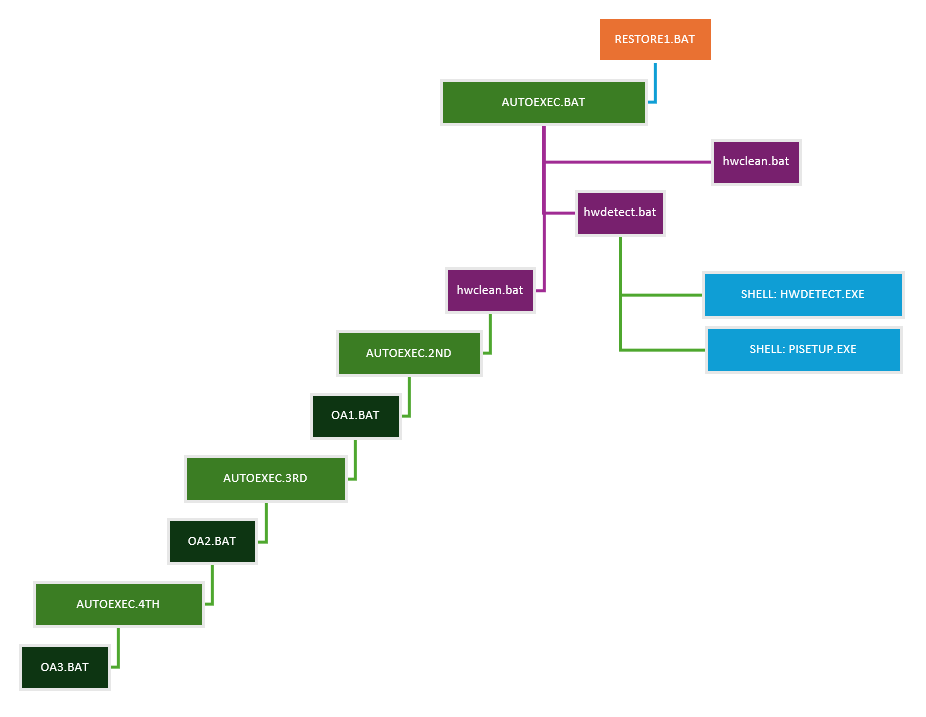
I began detailing and tracing the maze of batch files that kickoff as part of the recovery restore, but the effort soon became futile as it is batch files all the way down. Using the MMCD_401 recovery disk, we have:
- 22 distinct .BAT files that kick off at different points to perform any actions, renames etc.
- 342 distinct .INF files that range from software packages to specific OEM setup processes.
- 14 distinct .TAG files that are used as part of tracking the process of the restore.
Along with these files, Packard Bell uses a number of proprietary compiled executables to facilitate the restore process. Some like KL.EXE are designed to lock your keyboard and mouse to prevent user intervention during setup. REG.EXE works to brute modify the actual Windows registry. MTRUN.EXE runs macros to perform user-like tasks such as setting up network connections. Others like RESTORE.EXE and OEMRESET.EXE handle a lot of the pre-post setup processes and file transfers. HWDETECT.EXE runs through a gauntlet of checks for specific hardware to prepare drivers.
The master CD I primarily used was from January 1997 as the closest I could find to match the date of the 750. However, most installs would fail silently and cause the start menu not to populate. After studying and taking notes about how each script and batch file affects the next step of the process, it was failing after the HWDETECT phase and not properly renaming the TAG files to signal the next step. This combined with flags that were marking certain install processes including for the program manager as factory-only were leading to the complex failure.
Digital Archeology of the Original Hard Drive
I wish I had done a clean drive image after my last blog entry when I had a brand new factory install fully operational with the start menu programs as well, since so much is error-prone when running through the master CD setup. Alas, I inadvertently overwrote that drive doing additional tests without a nice backup. I do have an image of the original hard drive but that included a lot of user content and customizations so would not be an ideal vanilla copy to a new drive to quickly restore a 750-755. That said, having a copy of the original fully functional drive let me find additional context clues about when the true master CD would had been manufactured and what it would had included.
OEMLOG.TXT
On the root drive was a log from the original OEMSETUP process, with a timestamp of August 11, 1998. Suggesting a factory restore was performed at that time. Some bits of metadata in the log:
ExePath:C:\PISETUP
Init:GetVersion:2563:1792
Setup:OEMINFO:c:\windows\SYSTEM\OEMINFO.INI:
Setup:BATCH:c:\windows\INF\MSBATCH.INF:
Setup:OEM:Packard Bell: Key:2F4DBD3A656EF:
Init:Inf Dialogs
It also makes reference to a number of files that as a first step in locating the closest restore CD would be to determine which other restore CDs also contain them. Most of the references (OLANG.INF, MOTOWN.INF, MMOPT.INF (themes) etc. appear on most Packard Bell CDs from 1995-1997 so were of minimal help.
One observation is that this one executed a RENAME.INF as part of the DoPiSetupGenInstalls process. In my searches of all available master CDs I have access to, I could not find this file anywhere else. The file heading indicates it was last modified on July 5, 1996:
;Packard Bell's Short - Long File Name Conversions
;Format 556JUNE Developer: Jon A. Sturtz (SE)
;Modified by MRF, 5-JULY-96@6PM
It essentially renames shortened paths to their full proper name in the registry including for Encarta 96 Encyclopedia, Microsoft Money, Mindscape, Documents, Microsoft Shared, Common Files, PhotoSuite, SimCity Classic / Terrain Editor, CompuServe, and TopDrawer. Some of these rename scripts were worked into other script files in later master CDs.
PBRELOAD.EXE vs. INSTASST.EXE
The original master CD I had used with varying degrees of success was 170889 - Win95 (Jan 1997 - Platinum Pro). This felt as close to the accurate era as possible including the pre-bundled software. On that CD, the vanilla PB reloader tool is PBRELOAD.EXE and shows a list of Packard Bell bundled programs or drivers that you can install or uninstall. I compared this to the original hard drive, where I found that instead is a program called INSTASST.EXE within the Windows directory. Specifically, PB Installation Assistant v1.55.
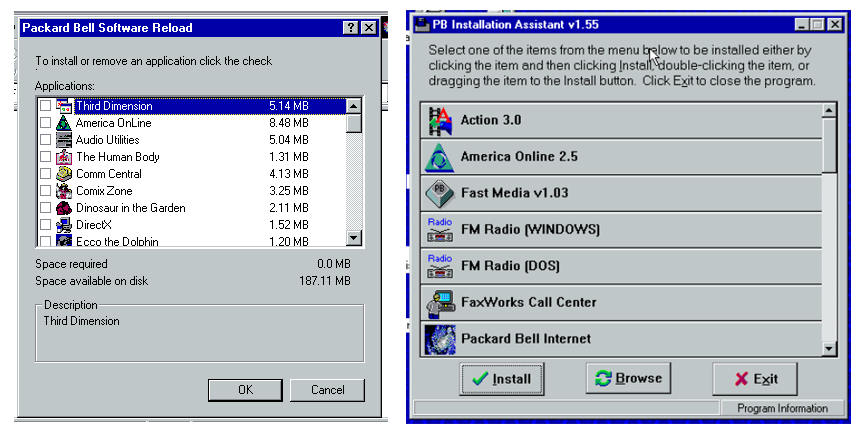
The PB Installation Assistant first checks to see that a master CD is inserted by checking for the existence of Q:\BU\A\*.SCR and then populates the actual entries with any subfolders found in Q:\INSTALL\. While PBRELOAD.EXE appears on a large span of master CDs from 1996-1997, INSTASST.EXE is more narrowed specifically to 170586 (August 1996) at least from the set of master CDs that have made their way online.
Another important context clue... The only notable difference between the Platinum Pro 750 and the Platinum Pro 755 is that the 755 included a 100MB Zip Drive (and, oddly, a lower capacity default HDD). When analyzing INSTASST.INI file we can see SETUP95.EXE relating to that drive. Searching my master CDs and I find reference to this ZIP100 executable in 170586 (Aug 1996) and 170802 (Sept. 1996).
For reference, INSTASST.INI found in C:\Windows\ of the original drive shows the following. Again these correspond to program folders within the INSTALL directory of the master CD.
[Captions]
ACTION3  = Action 3.0
AOL      = America Online 2.5
ARCADE   = Microsoft Arcade
CIR-5440 = Cirrus Logic 5440 Driver Setup
FAXWORKS = FaxWorks 3.0
FLTSIM5  = Microsoft Flight Simulator v5.0
FMEDIA   = Fast Media v1.03
FMRADIO  = FM Radio
FWCCAMSP = FaxWorks Call Center
GOLF2    = Microsoft Golf 2.0
INTERNET = Packard Bell Internet
INTPOINT = Microsoft IntelliPoint
INTTYPE  = Microsoft IntelliType
MCONTROL = Media Controller
MPEG     = MPEG Driver Setup
MSMONEY  = Microsoft Money
MSWORKS  = Microsoft Works
NETLNCH  = Compuserve NetLauncher
ODBC16   = 16-bit ODBC Driver Setup
PBAUDIO  = Packard Bell Sound Driver Setup
PBAUDIO3 = Sound III Driver Setup
PBTV4    = Packard Bell TV
PNP	 = Plug and Play Kit
PRODIGY  = Prodigy
PRODPACK = Microsoft Productivity Pack
QUICKEN  = Quicken
QWKTIME  = QuickTime for Windows v2.01
SCENES   = Microsoft Scenes 2.0
SND144AM = Packard Bell Sound Driver Setup
SOUND144 = Packard Bell Sound Driver Setup
SNDBITS  = Microsoft Sound Bits (Hollywood Version)
SPACESIM = Microsoft Space Simulator
STICKUPS = StickUp Lite
TALKSHOP = TalkShop (Radish)
VREMOTE  = Virtual Remote
WAVTABLE = Wavetable Driver Setup
WEPPB    = Windows Entertainment Pack
WINCIM   = Compuserve Information Manager
ZIP100   = IOmega Zip Drive

[INSTALL]
MSMONEY  = DISK1\SETUP.EXE
ZIP100   = SETUP95.EXE

[SEARCH]
COUNT    = 6
ITEM1    = SETUP.EXE
ITEM2    = INSTALL.EXE
ITEM3    = SETUP.BAT
ITEM4    = INSTALL.BAT
ITEM5    = SETUP.COM
ITEM6    = INSTALL.COM
The existing IRQ line-up from the original functioning drive (excluding added USB / Ethernet):
- IRQ 00: System Timer
- IRQ 01: Standard 101/102 Key Keyboard
- IRQ 02: Programmable Interrupt Controller
- IRQ 03: COM2
- IRQ 04: COM1
- IRQ 05: Packard Bell Sound Card w/ WaveStream
- IRQ 06: Standard Floppy Disk Controller
- IRQ 07: LPT1
- IRQ 08: System CMOS/Real-Time Clock
- IRQ 09: Packard Bell MPU-401 Compatible
- IRQ 10: Packard Bell Sound Card w/ WaveStream
- IRQ 11: S3 Inc ViRGE PCI
- IRQ 12: Wheel Mouse / PS/2 Mouse
- IRQ 13: Numeric Data Processor
- IRQ 14: Intel PIIIX Bus Master PCI IDE Controller
- IRQ 14: Primary IDE Controller (Dual Fifo)
- IRQ 15: Intel PIIIX Bus Secondary PCI IDE Controller
- IRQ 15: Secondary IDE Controller (Dual Fifo)
Packard Bell Master Restore CD 170586 (August 1996)
After the above detective work, the next closest match for a proper master CD would be the 170586 build from August 1996. This is an older build than 170889 (January 1997), which I had originally built much of my restore experiments on. One upload of this master CD on Internet Archive indicates it shipped with the person's Packard Bell Multimedia D135, which largely tracks with the general specs of the Platinum Pro 750/755.
As if this entire process wasn't frustrating and confusing enough, from the CDs I have including via the Packard Bell Facebook Group FTP server, there are actually three versions of the 170586 floating around with different contents:
- 170586 - Win95A (Aug 1996 - Multimedia).iso (567,296 KB)
- 170586-02 - Win95A (Aug 1996 - Multimedia).iso (588,652 KB)
- 170586-03.iso (588,476 KB)
I did some file compares and found that the first version seems much older, lacks drivers and a chunk of software including PBAUDIO, PBAUDIO3, TRIO and VIRGE folders. It also uses "Master Restore Diskette Version 2.4W" instead of 3.1W on version 2 or 3.2W on version 3—as well as other old versions like PC-Doctor Remote 1.5.170PB instead of 1.7.210PB. The other two much more closely align, with different pathing references for some scripts. The 03 build includes references to MSC_BOOT.W95 and MSC_MSTR.W95 at the top of 556047.SCR, while 02 build may have a few superficial added includes (e.g., FMEDIA\HISTORY.TXT). The floppy boot from the 170586-03 build (3.2W) integrates RAMDRIVE and a few other alterations, so is generally the better choice even when using the version 2 restore disc. Ultimately I found that using 170586-03.iso and its accompanying boot disk managed a successful restore complete with Packard Bell Navigator, with the only lingering conflict being the audio drivers that I initially could attribute to an IRQ conflict since I have a USB card and Ethernet card installed.
Format Number Codes
One cumbersome feature of these earlier restore CDs that was eliminated by the time of the January 1997 master CD I used most commonly was that you'd be prompted to enter a "Format Number Code" during the initial restore process. The concept was that one CD would contain specialized install scripts (/BU/A/*.SCR) for a number of model variations with different hardware profiles. You would enter a code from your computer's paperwork such as 556080 and the script would call 556080.SCR to copy the customized content from that file. Using a blank value for the prompt would instead pull from GENERIC.SCR. Review of these 170586 images shows that, despite having many model entries, the scripts are all the exact same and use "556080" internally no matter what code you enter. But for other restore discs there were different subfolders of contents depending on the format code.
Not Quite What I Want...
While this master CD did get the system restored to a pretty era-accurate configuration, one obvious sign that the CD predated the actual 750 Multimedia is that it shipped with PBTV4. But this system sported the newer PBTV5, which is instead part of the January 1997 disc. The original drive also had Packard Bell Navigator 3.9 built-in, while the August 1996 CD installs 3.5-3.6 instead. I'm also a bit dismayed that the August 1996 master CD is built off of Windows 95 OSR1 which doesn't support > 2GB partitions and has quite a number of more problematic driver and hardware support issues especially for USB. To be fair, the original hard drive was also on Windows 95 OSR1, but I would be comfortable bumping that up to OSR2 to support a hint of added accommodations without deviating from the "shipped" OS.
[PBTV5]
To see which master CDs from my collection specifically shipped with PBTV5, I ran a search in VSCode. From that I was able to see that it existed from Dec. 1996 through March 1998.
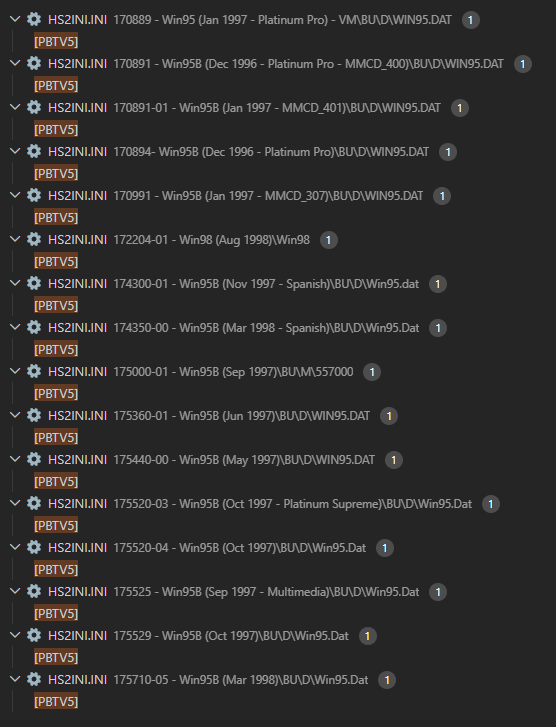
In order of date:
- Dec. 1996 (170891)
- Dec. 1996 (170894)
- Jan. 1997 (170889)
- Jan. 1997 (170991)
- May 1997 (175440)
- June 1997 (175360)
- Sept. 1997 (175525)
- Sept. 1997 (175000)
- Nov. 1997 (174300)
- Oct. 1997 (175520)
- Oct. 1997 (175529)
- Mar. 1998 (174350)
- Mar. 1998 (175710)
- Aug. 1998 (172204)
The way apps are installed evolved across the various restore CDs and within HS2INI.INI.
- Sep. 1996: Packages such as PBTV were standalone applications houses in the INSTALL folder of the CD. This is an ideal way to port and reinstall the software onto other Windows installs.
- Dec. 1996 - Jan. 1997 - Platinum Pro: All application references were laid out in INF files and sourced via: g,c:\INF\PBTV.INF,CDRESTORE - This is a convoluted manner of housing software and likely contributed to some of the odd restore issues I experienced from these in particular. However, internally many discs shipped with the true setup files inside of a cab, such as PBTV.CAB.
- May 1997 - Nov. 1997: All applications were housed in compressed .GTS files and referenced via: Include "c:" "windows\options\gts\41.gts"
- Mar. 1998 - Aug. 1998: Referenced simply by PBTV5 in HS2INI.INI.
The bolded dates above represent master CDs that also included my favorite "Microsoft Entertainment Pack for PB" containing Rattler Race, which I used to bike to Radio Shack and play for hours just to retain all of the top scores! I discovered other master CDs also included this pack but in compressed cab files. If I wanted to aim for the best vanilla restore that is mostly aligned with my Platinum Pro 750/755 but with Windows 95B, PBTV5 and Navigator 3.9, these are now the top contenders:
- Dec. 1996 (170891)
- Dec. 1996 (170894)
- Jan. 1997 (170889)
- Jan. 1997 (170991)
- June 1997 (175360)
- Nov. 1997 (174300)
But the problems with the structure of the Master CDs from Dec. 1996-Jan. 1997 and frequently corrupt restores make those undesirable. Further review and some of the later CDs from June onward keep the reference to PBTV5 but deleted the actual 41.gts from the CD. In fact, the only CDs that 41.gts remains present on are May 1997 and May 1998 - Spanish.
Packard Bell Master Restore CD 175360 (June 1997)
Having tested out practically every Master CD that I was able to locate for Windows 95 against the Platinum Pro, I found many had issues of varying levels of severity. Even considering all of the above, the truly most effortless base install for my Platinum 750 that remains closely aligned to the original came from this June 1997 edition. (That is if you cannot get the Dec. or Jan. 1997 restore discs to cooperate...when those work with the hardware then that's still my preference.) This marks a point when the master CDs departed from the sloppy INF/INI dependencies to install packages. I was able to install it unattended, it populated the entire start menu and desktop, and other than the error-prone sound card modem combo it seemed to work well. Depending on if you have extra peripherals installed, the initial hardware configuration screen may freeze and you'll have to manually reboot for it to continue.
Packard Bell Master Restore CD 175710 (March 1998) - The GOAT
My experiments with restoration discs continued for several months. At the end, I ultimately concluded that the March 1998 (175710) master CD provided the best restore process of them all. By this point in time, the boot disk and restoration processes from Packard Bell had evolved substantially from the original INF/INI hacked batch file daisy chains seen in 1994-1997. Everything from the initial boot screen and user prompts to its detection of issues including unformatted hard drives is refreshing compared to the early restore discs I worked mostly with during this process.
The AUTOEXEC.BAT of the recovery floppy reads: Master Restore Diskette Version 8.5 Revision 97.12.30.11. The true underlying batch file is RESTORE.BAT and it is revolutionary compared to the ones seen in the 2.x and 3.x recovery media. It handles automated partitioning and formatting, uses the standard OAKCDROM drivers and does away with all the aggressive hardware and device checks. The error messages and user prompts are also much more detailed. The included FDISK (since this is Windows 95B) also supports larger partitions, so it feels nice to be able to put a 6-8GB drive in without dividing it up into a collection of sparse partitions. Once booted it even sports a more elegant Packard Bell OEM wallpaper!
The bundled software packages, however, are not nearly as fun as the 1996 builds. I saw just two games (educational in nature) and a lot of considerable bloatware and Internet offers. The charming fullscreen Navigator that once attempted to be a full Windows shell replacement has been replaced with a simplified Navigator Assistant, which acts more like a desktop widget of quick links. Still, it serves as probably the easiest foundation to get a Platinum Pro 750-755 and other variants running again with that new Packard Bell smell. All the missing programs, Navigator 3.9, Multimedia pack and so forth can be manually installed, as can PBTV5.
Creating the Master Restore Floppy Disk
I always recommend using the restore disk that shipped with the accompanying Master CD build since they went through so many iterations over time and may reference particular paths or restore scripts from the associated master CD. Some of the restore discs that were imaged and available online contain OSBOOT.IMG that can be opened in WinImage (or your favorite floppy disk writing utility) and directly written to a disk, including with the proper system boot record.
Other images including 175710-05 - Win95B (Mar 1998).iso just have the floppy restore files in a "Floppy" folder. But if you try to drag them directly over to a floppy disk it won't be bootable since it isn't formatted as a system boot disk. If writing the files through WinImage you can adjust the boot sector properties via Image > Boot Sector Properties. Or you can write an existing boot image to create a base system disk, and then copy over the "Floppy" file contents to it (do not overwrite command.com, io.sys or msdos.sys).
If you have any bootable disk, you can also create a clean restore disk from the Packard Bell itself based on the "Floppy" contents as follows. This is actually my preferred method for these types of discs.
- Boot the Packard Bell using any bootable floppy disk, exit any UI to return to DOS prompt.
- Make sure your hard drive, C:, is formatted (fdisk & format as needed).
- Create a new directory on C: via mkdir C:\Floppy
- Copy the CD's floppy contents to C: via copy Q:\floppy\*.* C:\floppy.
- Insert a floppy disk and system format it via format A: /s.
- Copy the C: floppy contents to A: via copy C:\floppy\*.* A:\.
- Reboot using this new floppy disk.
(I copy the floppy contents first to the hard drive before copying to the floppy to avoid read/write issues and delays common on slow CD drives.)
Sound Card / Modem / Joystick Combo (Aztech AZT2316R)
The integrated ISA sound card that ships with these machines is a complex beast. It serves as a modem, audio interface and joystick port in one. It sports the Aztech (AZT2316R) chip but the drivers can be very particular and there are a few scattered threads on the internet including on VOGONS of people trying to hunt down the best compatible drivers. My device is identified as:
Packard Bell Aztech AZT2316R 16-Bit ISA Sound Card / Modem Combo
- Identifiers: E92481 94V-0 002V0 1596 050-514203-403
- Bar Code: ANSC62022547 030271 (Made in Indonesia)
- FCC ID: 138-MMSN842 & 4J2SNG-22834-PT-E
- (SRS Labs 3-D Stereo Technology)
- IC: Aztech AZT2316R
- IC: Analog Devices AD1845JP SoundPort 9608 25504950-0.9
- IC: Rockwell 95 9617 B10419-5 RCV288DPi R6682-24 (Mexico)
- IC: Rockwell 95 9616 A98595-2 R6723-13 (Hong Kong)
- IC: Rockwell 94 9614 A94298-2 RCFSP R6674-16 (Mexico)
- IC: Winbond W24257AJ-15 96093
- Firmware: RCV336 ACI/SP Flash
The device manager form a functional original hard drive shows the hardware as:
- MODEM: Packard Bell Sound II 336SP
- SOUND: Gameport Joystick
- SOUND: Packard Bell MPU-401 Compatible
- SOUND: Packard Bell Sound Card w/ WaveStream
- SOUND: Wave Device for Voice Modem
The original master discs had all of the driver configuration for this bundled into the INF/INI configurations. By the time of the true Platinum 750-755 machine the correct restore disc instead housed this all as a standalone installation housed in the PBAUDIO folder and spanning three virtual disks. But some discs also had a PBAUDIO3 folder with a different set of utilities and drivers.
In my case, the automated install failed for this card when using the March 1998 disc. It installed a generic modem driver but nothing for sound. After contemplating if I should roll out a combo pack of the necessary drivers from the working drive, I realized the more direct solution was to simply run the compatible PBAUDIO setup manually. The original hard drive did have this folder on the C:\ but it was missing the actual disk setup images. I found a clean installable copy from the August 1996 (170586) Master CD, which shipped with a variety of multimedia machines.
I have uploaded the standalone driver package installer to Internet Archive, which should serve to get any matching card up and running on any Windows 95 machine (probably Windows 98, too). This may not cover the modem-specifics, but at least the true and correct audio hardware will then be initialized.
IRQ Conflict
Another problem is that I had previously installed a USB card in a PCI port, and have an ethernet card as well. After installing the audio suite, which also includes my favorite "audio deck" of all time, a hardware conflict appeared in Device Manager for Packard Bell Sound Card w/ WaveStream and therefore no audio playback or volume icon appeared. Within the Device Manager hardware tab for this component, it was defaulting to IRQ 10 that was shared with the USB hub / PCI card. I manually changed the IRQ profile for this sound device to Base Configuration 4, which set it to IRQ 7 that was only shared with the unused LPT1 printer port. After a reboot, the default chimes and sounds were working perfectly. This may warrant a bit more exploration down the road but I'll take sound over a printer for the moment.
(It occurred to me, many of the problems arising from the HWDETECT sequence of the initial Dec. 1996 and Jan. 1997 restore discs could had related to me having additional PCI cards installed, which were tripping up the automated headless HWDETECT sequence due to conflicting IRQs. But the install process of those earlier restore discs felt very sensitive in general. I would always recommend installing from a restore disc with only the bare factory default sort of hardware installed, then install the rest once in Windows.)
Reinstalling Additional Packard Bell Software
Starting with the base install from 175710 (March 1998), I find the easiest approach to then reload more of the 1996-1997 era Packard Bell software is by then inserting the MMCD_401 (170891 - January 1997) disc. Since there are a variety of builds of this out there, I find the most stable to be 170891-01 - Win95B (Jan 1997 - MMCD_401).iso. However, if this one manually prompts you a bunch of times for particular files when trying to install Navigator, then I would suggest instead using the vanilla MMCD_400 variant, 170891 - Win95B (Dec 1996 - Platinum Pro - MMCD_400).iso.
With 170891 inserted, you can navigate to INFMAN/PBRELOAD.EXE and then check the desired options. For Navigator 3.9, you need to check both ODBC16 and Navigator. There are some advanced instructions on how to manually install it onto a much wider variety of operating systems and configurations, here. You can do the similar as necessary for the LiveVideo, MPEG and PBTV components. As mentioned, this is also a convenient way to install any other 1996-1997 era software packages not found on 175710.
I have uploaded a pack of ISOs of the various master CDs referenced in this blog. The file 175710-05 - Win95B (Mar 1998)_mod.iso is identical to vanilla 175710-05 but I include an EXTRAS folder with the USB/Ethernet drivers as well as the original Packard Bell OEM wallpaper. Further, I include various INSTALL programs found on other CD compilations including PBAUDIO that may be more convenient than bouncing between master CDs. However, I still generally recommend doing the vanilla 175710-05 install followed by the 170861 (MMCD_401 or MMCD_400) to fill in the gaps, including Navigator.
Addendum
After posting this blog I continued to experiment to finalize everything with my one functional Packard Bell Platinum 750 machine. A few final observations are below.
Ethernet Support and USB Card Conflict
I realized that no matter what PCI ethernet card I was using, including the IBM one that had worked in my prior configuration, there would always be some degree of driver or hardware conflicts in Windows. I eventually deduced that my functional USB card powered by XUSBSUPP was causing an unspecified conflict. After physically removing the USB card I reinstalled the drivers for the network card and all was well, including DHCP through my modern router and switch. Once the network was verified as working, I reinserted the USB card and then both cards cooperated nicely.
The ethernet card I used this time from a stack of them at random was one sporting the Realtek RTL8139C chip. This one has drivers for every imaginable vintage OS and a nice installer for Windows. I have uploaded a package of these drivers to Internet Archive where I've moved the main setup package out from a deeply nested folder to the root. Additional instructions on how I recommend installing it for Windows 95 are included in the archive description. Make sure to add Client for Microsoft Windows and TCP/IP to the network stack in control panel, after installing the driver. You can remove the legacy protocols (IPX/SPX and NetBEUI) while you are at it.
More IRQ Hell
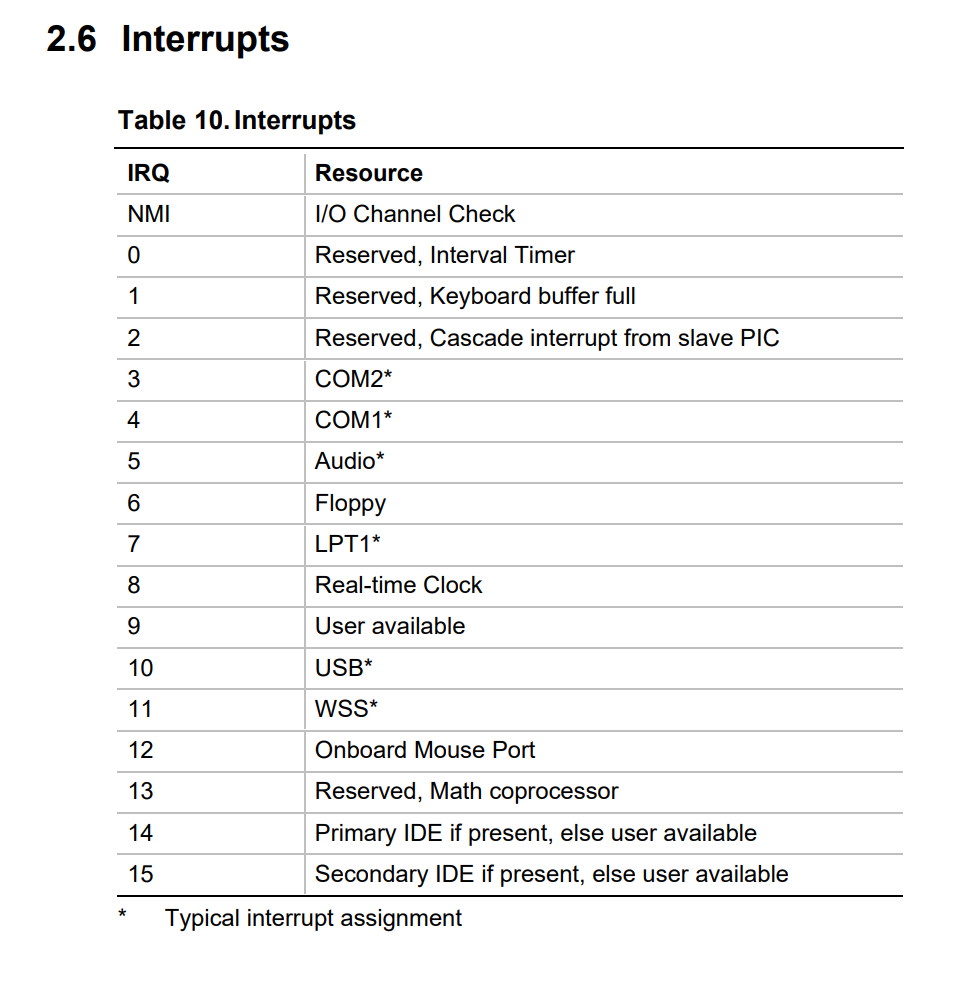
As detailed previously, the ISA all-in-one soundcard consumes a lot of resources since it is acting as a sound card, modem, joystick and MPU-401 MIDI device. The original configuration of my initial Platinum 755 had this card consuming IRQ 5, 9 and 10. The use of IRQ 10 becomes more complicated when introducing PCI cards that share that space. When I last redid the Platinum 750/755 using the earlier master CD, I was able to use IRQ 4 and IRQ 5 for the sound system, and omitted the MPU-401 component.
The latest incarnation and with audio drivers installed via PBAUDIO, it pushes the sound card to IRQ 5 and IRQ 7, which then clashes with LPT1. The BIOS allows some control over the serial port aka COM2 (which factory maps to the physical serial port on the back, COM1 is internal) and LPT1 but anything beyond automatic tends to throw a BIOS boot conflict and can be finnicky to restore. In the BIOS, currently and with all defaults and automatic configurations, it shows Serial Port Status: COM2 2F8 IRQ3 and Parallel Port Status: LPT1 378 IRQ5.
Back in Windows, I left COM2 at the default and changed COM1 to 2E8-2EF IRQ 03 (which turned it into COM4 in device manager). COM2 is the true serial port that would be used for things like serial mice or other devices, anyhow. the LPT1 / Printer device was also conflicting, so I switched it to manual and changed the configuration to match the BIOS which included 378-37B IRQ 05. This resolved the conflict in the device manager without interfering with the soundcard, since the part of the soundcard that also uses IRQ 05 starts at higher memory.
The very final oddball in device manager is a generic "Communications Port (COM & LPT)" that threw the status message: "The device has been disabled in the hardware." I don't actually know what this relates to as I confirmed the user-accessible serial port is fine and all other hardware is accounted for. It is possible this is a phantom driver attempt from the internal IR header, though I doubt this as it appears even when IR is disabled in the BIOS. The motherboard does support Hewlett Packard HSDSL-1000 compatible infrared transmitters/receivers. This can be enabled in the BIOS and then takes over serial port 2. Enabling this in the BIOS successfully installed the necessary drivers in Windows. But, I then lost functionality of my serial mouse from the back-facing serial port. Even after disabling IR again in the BIOS, Windows insists on installing the drivers on reboot but they don't hurt anything.
Note that certain legacy DOS-driven serial devices such as my old BP-EP1 EPROM Programmer still clash with Windows IRQ assignments if you try to run them from the GUI. In these instances, rebooting direct to MS-DOS is the way to go. The motherboard's typical IRQ lineup is as follows, according to the manual:
Packard Bell Navigator 3.9 - PBTV and Audio Interface
When installing or launching Navigator, it checks for particular hardware/software before enabling particular features of the interface. If you do not have PBTV installed, the clickable TV screen on the home screen of Navigator is instead a static picture. The same is true for the mounted stereo image to the left of the TV screen—if you don't have the proper audio stack and utilities installed via PBAUDIO/AZAUDIO or they are installed to a different directory than what Navigator expects, this component can't be clicked to open the stereo deck. For this reason, I recommend first installing, launching and testing your PBTV and PBAUDIO (and "Audio Utilities" from the PB Software Reload tool) before installing Navigator.
I noticed after installing Navigator from the MMCD_400 disc that it was checking this path for the audio station: c:\azaudio\voyetra\windat\audiosta.exe - While the original install instead checked under c:\pbaudio\voyetra\windat\audiosta.exe. You can review expected paths via NAV.INI.
I wound up copying the NAV/BOOKS folders from the original drive to better replicate the configuration. I have also uploaded a ZIP of these and some other folders, plus AUTOEXEC.BAT and CONFIG.SYS from the original drive to Internet Archive. (Note that the actual BOOK files (.MVB) are not in the "Books" folder on the C: but typically mapped to a CD drive. You can alter the paths and review the book contents via NAVBOOKS.INI. I have uploaded a pack of 62 MVB books and a merged listing from various master CDs to Internet Archive.
Time to Enjoy!
As part of testing, I hooked up a new-old stock Logitech Wingman game controller to the joystick port of the sound card, and after calibration it works wonderfully. I tested a serial mouse from Windows to confirm serial functionality, as well as my EPROM Programmer from DOS and all is well. I transferred files via the USB card and pinged out to websites via the ethernet card. I installed a 1.2MB 5.25" floppy disk drive and enabled that in the BIOS, verifying it is accessible from DOS and Windows. I swapped the initial 8x drive with a 48x CD recordable for a bit more versatility. I ran the CD audio cable to CDAUDIO1 of the sound card, allowing me to play music CDs with one click or from loading the Packard Bell stereo deck. I picked up a nice pair of Samson Meteor M2 speakers from an estate sale and they sound superb, but I'll probably stick to black Logitech speakers that match the Dell Trinitron CRT for this build. I made a compressed and full disk image for safekeeping, so if I do need to do a full restore again I can simply reimage a new drive using HDDRawCopy.